Finding and Setting Up Key Codes
Key codes are the codes generated when you press a key on a keyboard, game controller or other input device. They are generated by your operating system. DOFLinx monitors these codes to determine certain input controls that act as triggers in some emulators, for example certain buttons like Player 1/2, Coin, Fire and bomb buttons in Mame / FBNeo.
Note
When using Mame with Pixelcade or DOF2DMD effects, having the key codes for the Player 1/2, and Coin buttons is essential for the stopping of the on screen effects like "Player 1", "Insert Coin".
Keyboard key codes are different between Linux and Windows. A list of Windows virtual key codes can be found here. A list of Linux key codes can be found here.
Your key codes are the last element on the parameter lines LINK_BUT_xx= in your DOFLinx configuration file, DOFLinx.INI . They will look something like this;
LINK_BUT_CN=1001,Orange,6
LINK_BUT_EX=1004,Amber,1
LINK_BUT_RE=1007,Orange_Red,61
LINK_BUT_P1=1010,Cyan,2
LINK_BUT_P2=1013,Orchid,3
LINK_BUT_B1=1016,Green,29
LINK_BUT_B2=1019,Red,56
The definition of the LINK_BUT_xx= parameter can be found in the guide here.
For DOFLinx the key code can be a keyboard code, as seen in the linked tables above, or it can be a joystick or Xbox (In Linux this will show as a joystick) code. The format of codes can be found here.
If you know the keystroke assigned to each of your buttons simply lookup the key coode and edit the code onto the respective line in your DOFLinx.INI file. If you don't know the keystroke for each button then they will need to be discovered.
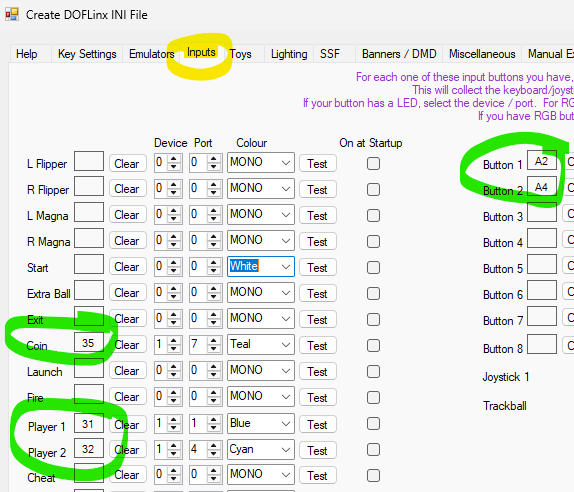
For Windows, simply run DOFLinxConfig, select "Configure" then the "Inputs" tab. You can then simply select the button to configure and you will be prompted to press your button at that point. The key code will be placed in the respective keystroke box.
For Linux there is no graphical configuration tool so another method is required. To discover your key codes in Linux undertake the following;
- Connect to your gaming computer with a tool like putty and open two consoles. We'll refer to these as console A and console B.
- On both console A and B change into the directory containing DOFLinx.pdb . You may need to run a command like "find / - name DOFLinx.pdb | grep pdb" to find that location.
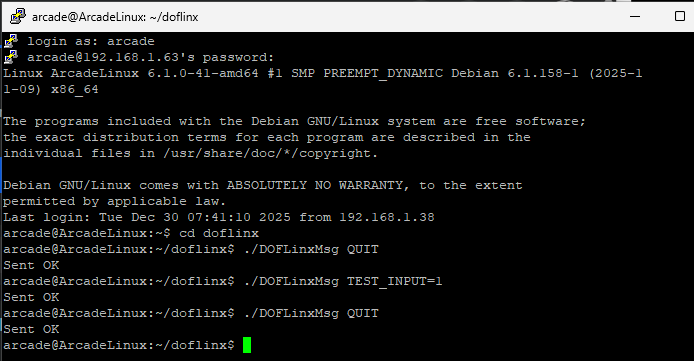
- Using console A we will stop DOFLinx if it is currently running using "DOFLinxMsg QUIT"
- Now on console B we will start DOFLinx in way that we can see its output log using "DOFLinx"
- On console A we will set DOFLinx to report the key codes of all keys pressed using "DOFLinxMsg TEST_INPUT=1"
- Now press each button in turn and record the keycode shown on console B
- Once all key codes have been discovered shutdown DOFLinx from console A using "DOFLinxMsg QUIT"
- Now edit the LINK_BUT_xx= lines in your DOFLinx.ini using your favourite editor, ie nano.
- While we can manually restart DOFLinx, its probably easier to restart your gaming machine and let everything start as normal.
Console A Sample
Console B Sample
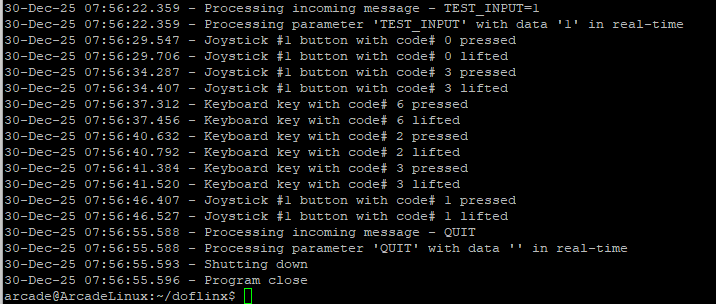
From the above test, in order the codes would be:
J0100
J0103
6
2
3
J0101